Google Sheets Automation for Small Businesses in India: A Practical 2026 Playbook
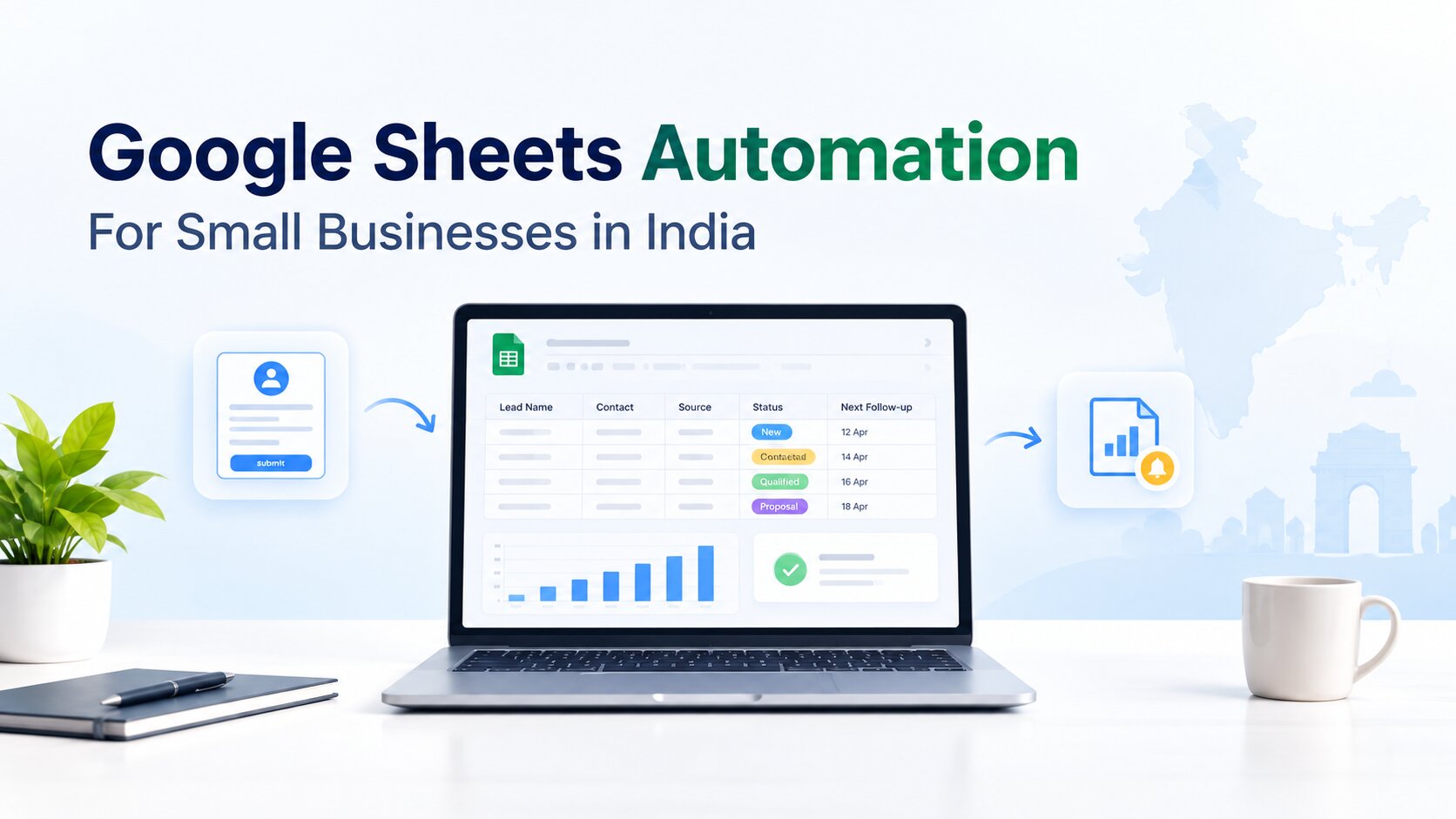
Google Sheets Automation for Small Businesses in India: A Practical 2026 Playbook
A surprising number of growing businesses are already running important operations on Google Sheets. Sales teams track enquiries there. Accounts teams maintain collections. Operations teams keep dispatch or inventory lists. Founders use dashboards built from multiple spreadsheets. The problem is usually not the spreadsheet itself. The problem is the manual work wrapped around it.
Someone downloads leads from a form. Someone assigns them. Another person checks which follow-ups are overdue. A manager asks for a fresh report. An employee copies data into a quotation template. A customer payment arrives and the status is updated later. Every small handoff adds delay, and the business gradually becomes dependent on people remembering the next step.
Google Sheets automation changes that. Instead of treating a spreadsheet as a static table, you use scripts, rules, APIs and connected applications to make it react to business events. A new row can trigger an action. A due date can create a reminder. A status change can generate a document. A daily schedule can prepare a management summary.
For small businesses in India, this is often one of the fastest ways to reduce repetitive work without immediately replacing every existing tool.
What Google Sheets automation actually means
Automation is not the same as adding more formulas. Formulas calculate values inside a spreadsheet. Automation coordinates what should happen before, during or after those values change.
A practical Google Sheets automation may include four parts: a trigger, a rule, an action and a record of what happened. For example, the trigger could be a new lead entering the sheet. The rule could check the lead's city and service requirement. The action could assign the correct salesperson and send an internal alert. The sheet then stores the owner and assignment time.
The same pattern can be used for dozens of workflows. Google Apps Script is useful when the process lives mainly inside Google Workspace. APIs and automation platforms such as n8n become useful when the process needs to connect with CRM, WhatsApp, billing tools, databases or other software.
1. Turn website enquiries into a live lead register
Manual lead entry creates two risks: delay and inconsistency. A prospect may submit a website form at 11:00 AM, but the sales sheet is not updated until someone checks the inbox later.
A better setup sends the enquiry directly into a structured lead sheet. The system can create a lead ID, capture the source, standardize the phone number, tag the campaign and record the time automatically.
The next step can also happen without human intervention. Based on city, product, language or lead type, the row can be assigned to the right sales representative. If the business uses a CRM, the same information can be pushed there instead of creating duplicate work.
This is a good first automation because the input is clear, the action is predictable and the benefit is easy to measure.
2. Build a follow-up system that does not depend on memory
Most small sales teams already have a column called “Next Follow-Up Date.” The weakness is that someone still needs to check it.
Automation can scan the sheet at the beginning of the day and create a clean list of follow-ups due today, overdue leads and high-priority opportunities that have had no recent activity. That summary can be emailed to the salesperson or manager.
The sheet can also highlight leads that have no next action. This is more useful than simply marking them red. It exposes a process gap: an active lead should always have an owner and a defined next step.
For businesses that later move to a full CRM, this discipline makes migration easier because the team has already learned how to work with structured stages and follow-up rules.
3. Create a lightweight CRM before buying a complex one
Google Sheets can support a basic sales pipeline when the process is still relatively simple. Columns may include Lead Source, Owner, Requirement, Stage, Last Contact, Next Action, Expected Value and Notes.
Automation can add timestamps when a stage changes, calculate how long a lead has remained in one stage, identify duplicates and create management views without asking salespeople to prepare a separate report.
This setup is not a permanent replacement for a proper CRM in every business. It works best when the team is small, permissions are straightforward and transaction volume is manageable. Once several departments need the same customer record, or audit history becomes important, a CRM or custom system is usually the better choice.
The advantage of starting this way is that the business discovers its real process before investing in heavier software.
4. Generate quotations without copying customer data twice
Quotation creation is a classic example of hidden administrative work. The salesperson already has the customer name, company, product and price in a sheet, but still copies the same data into a document.
With Apps Script, the system can take approved values from the row, place them into a Google Docs template, create a PDF, save it in the correct Drive folder and write the link back into the sheet.
A quotation number can be generated automatically. The creation date, validity period and salesperson can also be stored. If the business has an approval rule for discounts, the workflow can pause until the manager confirms the price.
The result is not only faster document creation. It also creates a traceable record that management can review later.
5. Automate invoices, certificates, job cards and service reports
Once a document-generation framework exists, it can be reused for many outputs.
A training company may create certificates from attendance data. A field-service company may generate visit reports. A manufacturer may produce job cards. A consulting firm may create project summaries. An HR team may issue letters from approved records.
The important design principle is to keep master data separate from the document layout. Employees should update the data in one place. The automation should be responsible for creating the final formatted file.
This reduces version confusion and helps teams maintain consistent templates.
6. Create an automatic payment-due dashboard
Accounts teams often maintain outstanding-payment spreadsheets but still rely on manual checking.
A simple automation can classify invoices into buckets such as due this week, due today, overdue 1–15 days and overdue more than 15 days. It can prepare a daily collection view for the accounts team and a separate summary for management.
If payment status comes from another system, an API or scheduled import can update the sheet. This prevents staff from chasing customers whose payments were already received but not yet manually entered.
Businesses should be careful with customer messaging here. The sheet can determine who needs attention, while an approved communication system handles the actual message according to the company’s process.
7. Monitor stock thresholds and purchase requirements
For a small trading or manufacturing business, inventory tracking often begins in Sheets. Automation can make the system more useful by watching reorder levels.
Suppose the available quantity of a component falls below the minimum stock. Instead of waiting for a store employee to notice it, the sheet can place the item into a “Purchase Required” view and notify the responsible person.
A more advanced version can consider open sales orders or planned production before suggesting the required quantity.
This is valuable as an interim system. If the company reaches a point where inventory movements, batches, multiple warehouses and production consumption need real-time control, a proper ERP is usually the logical next step.
8. Consolidate branch or team data automatically
A common spreadsheet problem is duplication. One sheet per salesperson becomes one sheet per month, which becomes dozens of files that management later needs to merge.
Automation can collect standardized data into a central reporting sheet while still allowing teams to work in their own controlled views.
However, consolidation should not become an excuse to keep a poor structure forever. If everyone is maintaining a private copy of the same customer or transaction data, the better long-term design is a shared source of truth.
Use automation to reduce current pain while gradually simplifying the architecture.
9. Send approvals through a defined workflow
Approvals are often handled in chat messages: “Please approve this expense,” followed by a screenshot and several reminders.
A spreadsheet can provide a cleaner flow. An employee submits a request through a form. The request is written into the sheet with a unique ID. The responsible manager receives a notification. The approval status and remarks are captured in the same record.
The system can then trigger the next step only after approval.
This is useful for purchase requests, expense approvals, discount approvals, leave requests and simple operational exceptions.
The benefit is not just speed. It creates accountability because the business can see who requested, who approved and when the decision happened.
10. Prepare management reports on a schedule
If a report follows the same format every day, a person should not spend the first hour of the morning rebuilding it.
Google Sheets can automatically calculate KPIs and prepare views for leads, sales, collections, pending tasks, production or support. A scheduled script can then send a concise summary at a fixed time.
The best reports focus on exceptions. Instead of sending fifty metrics, show the five items that need attention: overdue follow-ups, unpaid invoices, delayed orders, low-stock items or unusually weak conversion from one source.
This makes reporting operational rather than decorative.
11. Connect Sheets with Gmail, Drive and Calendar
Google Workspace becomes much more powerful when its applications are treated as one system.
A lead row can create a Calendar event. A completed project row can generate a Drive folder. A status change can send a formatted email. A file uploaded through a form can be moved into the correct customer folder.
Apps Script is particularly useful for these workflows because it can interact directly with Google Workspace services.
The key is to control permissions carefully. Scripts should access only the data required for their job, and business-critical automation should be owned by an appropriate organizational account rather than one employee’s personal login.
12. Use Google Sheets as an interface for API-driven workflows
A spreadsheet can also become a simple interface for more advanced systems.
For example, a user can change a row from “Draft” to “Approved.” That action triggers an API call to another application. The result comes back and updates the same row.
This approach is useful when non-technical employees need an easy control panel but the actual processing happens in CRM, ERP, payment, logistics or custom software.
It is also where n8n can complement Apps Script. The sheet remains familiar to the team, while n8n handles external integrations and multi-step orchestration.
When Google Sheets automation is the wrong solution
Not every business process should stay in a spreadsheet.
A dedicated system becomes more appropriate when hundreds of people require different permissions, transactions need strict audit history, multiple users are editing the same records at high frequency, or business logic has grown into a large network of scripts that only one developer understands.
Security is another consideration. Sensitive data should not be placed in a sheet simply because it is convenient. Access controls, data retention and integration permissions should match the risk of the information being handled.
A good automation partner should be willing to say when the business has outgrown Sheets.
A simple framework for choosing the first workflow
Do not start by asking, “What can we automate?” Start by asking, “Where does our team lose time every week?”
List five repetitive processes. For each one, note how often it happens, how many people touch it, what mistakes occur and what the delay costs.
The best first project usually has three characteristics: it happens frequently, the rules are clear and success can be measured.
Lead assignment is a strong example. If the business can show that response time fell after automation, the value is obvious.
How to make automation maintainable
Small automations often fail six months later because nobody documents them.
Every workflow should have a clear owner, a description of what triggers it, a list of systems it touches and a simple recovery plan when something fails. Important scripts should be stored and versioned properly. Credentials should never be left inside visible cells.
Configuration values such as email recipients, thresholds and folder IDs should be kept in a controlled place so they can be updated without rewriting the entire workflow.
Automation should reduce operational dependency, not create a new dependency on one hidden script.
What InfoTechBrains can automate around Google Sheets
InfoTechBrains provides Google Sheets automation and custom business software for companies that want to remove repetitive operational work without introducing unnecessary complexity.
A project may involve Apps Script, forms, dashboards, Drive workflows, CRM integration, APIs, n8n, WhatsApp Business API or a migration path toward a larger custom system.
The practical starting point is usually a process review: what people enter manually, where data is duplicated, which reports are repetitive and which actions should happen automatically after a status changes.
From there, the business can automate one high-value workflow and expand only after the process proves reliable.
Frequently asked questions
Can Google Sheets automation replace a CRM?
For a small team with a straightforward pipeline, it can handle basic lead tracking and follow-up management. Once permissions, customer history, integrations and reporting become complex, a dedicated CRM is generally easier to manage.
Is Google Apps Script suitable for business automation?
Yes, especially for workflows centered on Sheets, Gmail, Drive, Docs, Forms and Calendar. External APIs can also be connected when needed.
Can Google Sheets trigger WhatsApp messages?
A sheet can trigger a workflow that passes approved customer data to an official WhatsApp Business API platform. The spreadsheet should control the business logic; the messaging platform should handle the actual communication.
Can an existing manual sheet be automated without rebuilding it?
Often yes. The best approach is to review the existing structure first, clean inconsistent columns and then automate the stable parts. Sometimes a redesign is worthwhile before adding scripts.
How do we know when we need custom software instead?
If the spreadsheet requires complex user roles, heavy transaction volume, strict audit trails or many interconnected scripts, moving to a custom application, CRM or ERP is usually safer and easier to scale.
Conclusion
Google Sheets is not only a place to store data. With the right automation around it, it can become a lightweight operating layer for a growing business.
The strongest opportunities are usually simple: capture data once, assign responsibility automatically, create the next action, generate repetitive documents and make exceptions visible to management.
Start with one workflow your team repeats every day. Make it reliable. Measure the time saved. Then decide whether to automate the next process or move the workflow into a larger system.
If your business already relies on Google Sheets for leads, reporting, inventory, approvals or operations, InfoTechBrains can help map the process and build an automation system around the way your team actually works.
About the author
InfoTechBrains Team
Technology expert focused on software architecture, automation, and digital transformation.
View profile & all posts →